API Product
Integrating our custom-built models and policies to your applications is a simple process. Only your website’s API key is required to use our products in real time. This guide takes a new Model Service user from login through incorporation of deployed model into their existing systems, using Postman API and Python to visualize the mechanics.
There are 3 steps covered in this section for incorporating deployed models into your systems:
- Login to the model service webpage
- Obtain the website’s API key
- Embed the API key to your systems
Step 1: Login to the model service webpage
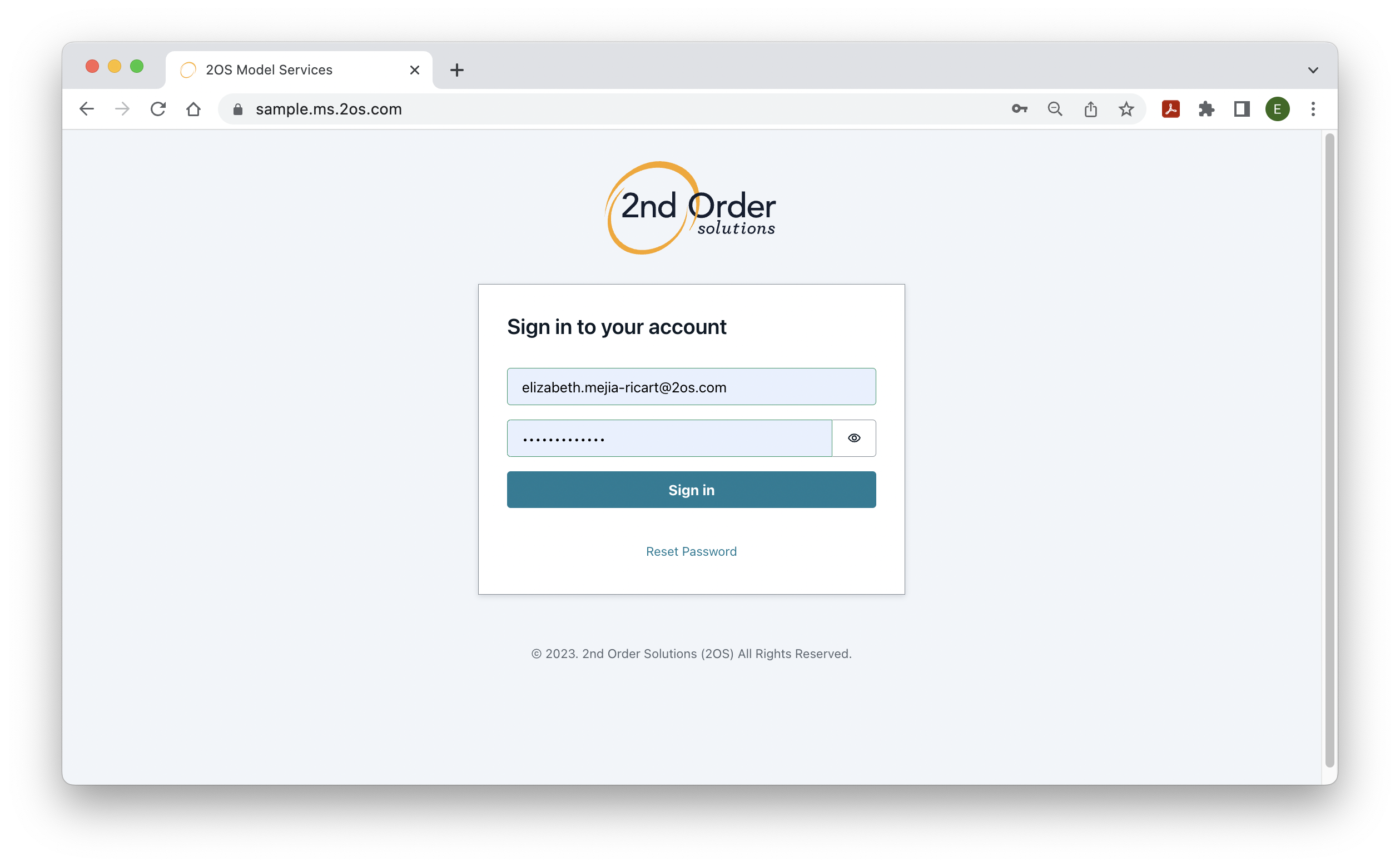
As part of the onboarding process, 2OS will provide the client-specific website address, and sign in credentials.
Step 2: Obtain the website’s API Key
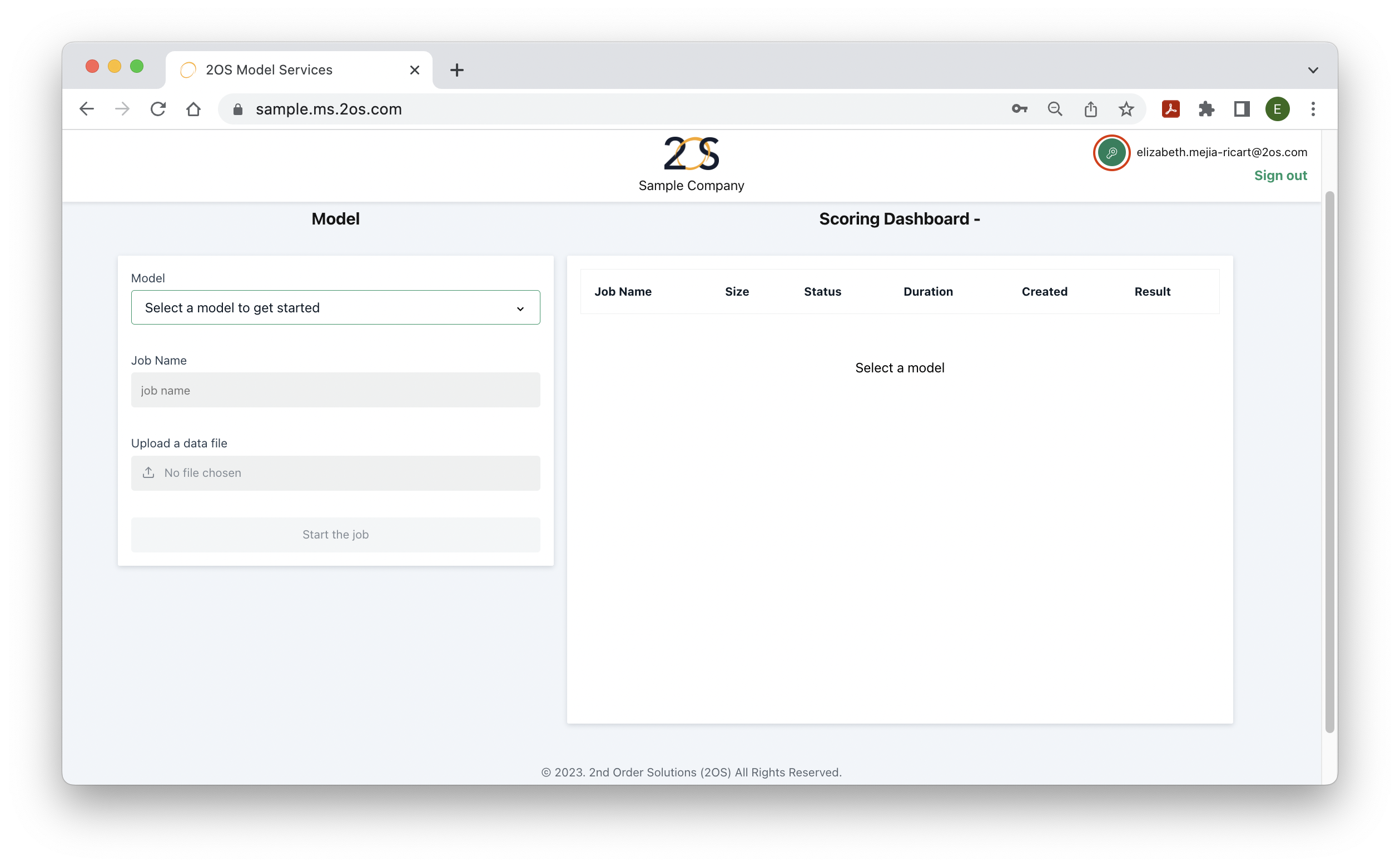
Once you are successfully logged in to the model service account, click on the key icon on the upper right corner (next to the username) to retrieve a confidential API key to access models via API.
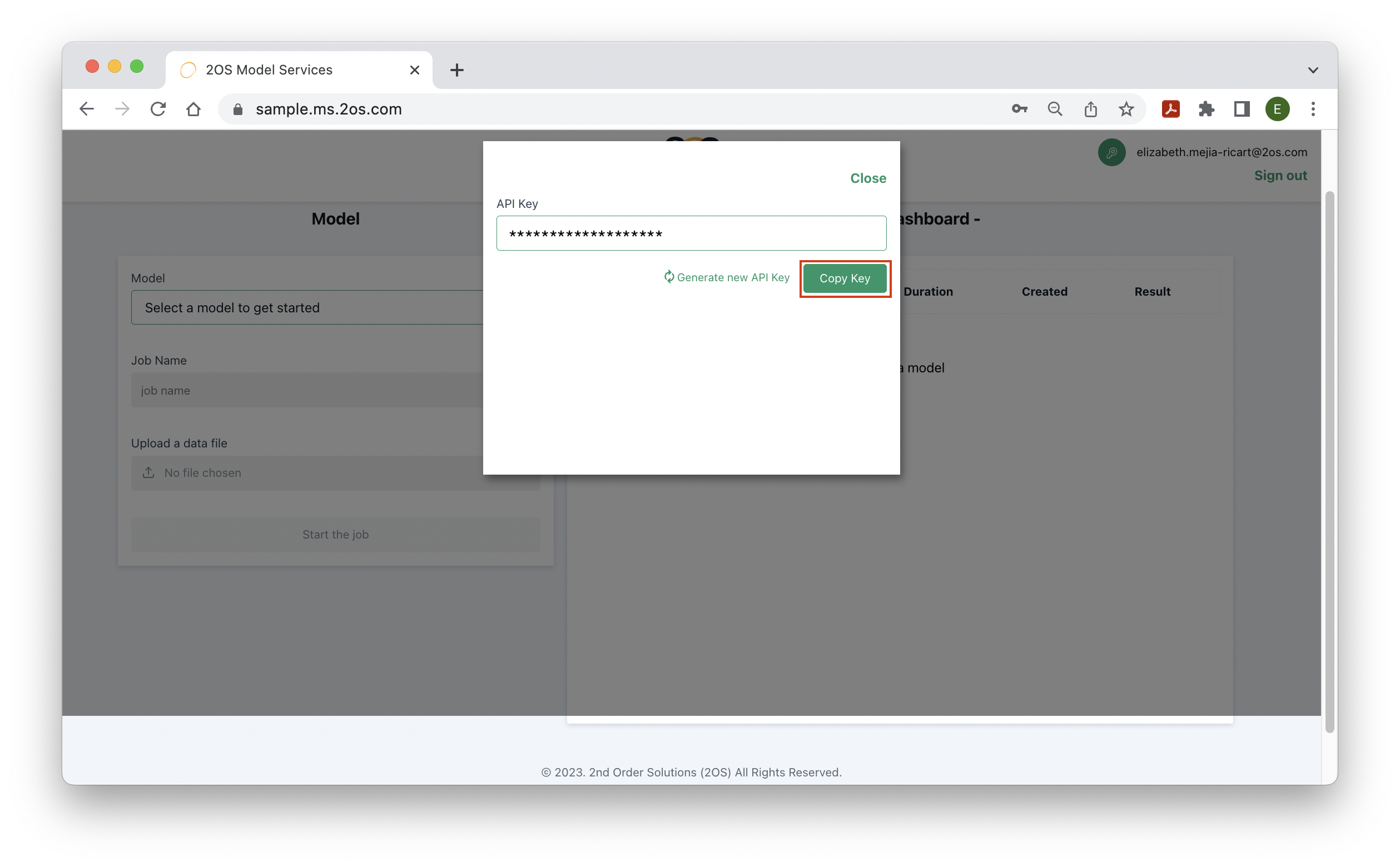
Click on ‘Copy Key’ on the next screen.
Step 3: Embed the API Key to your Systems
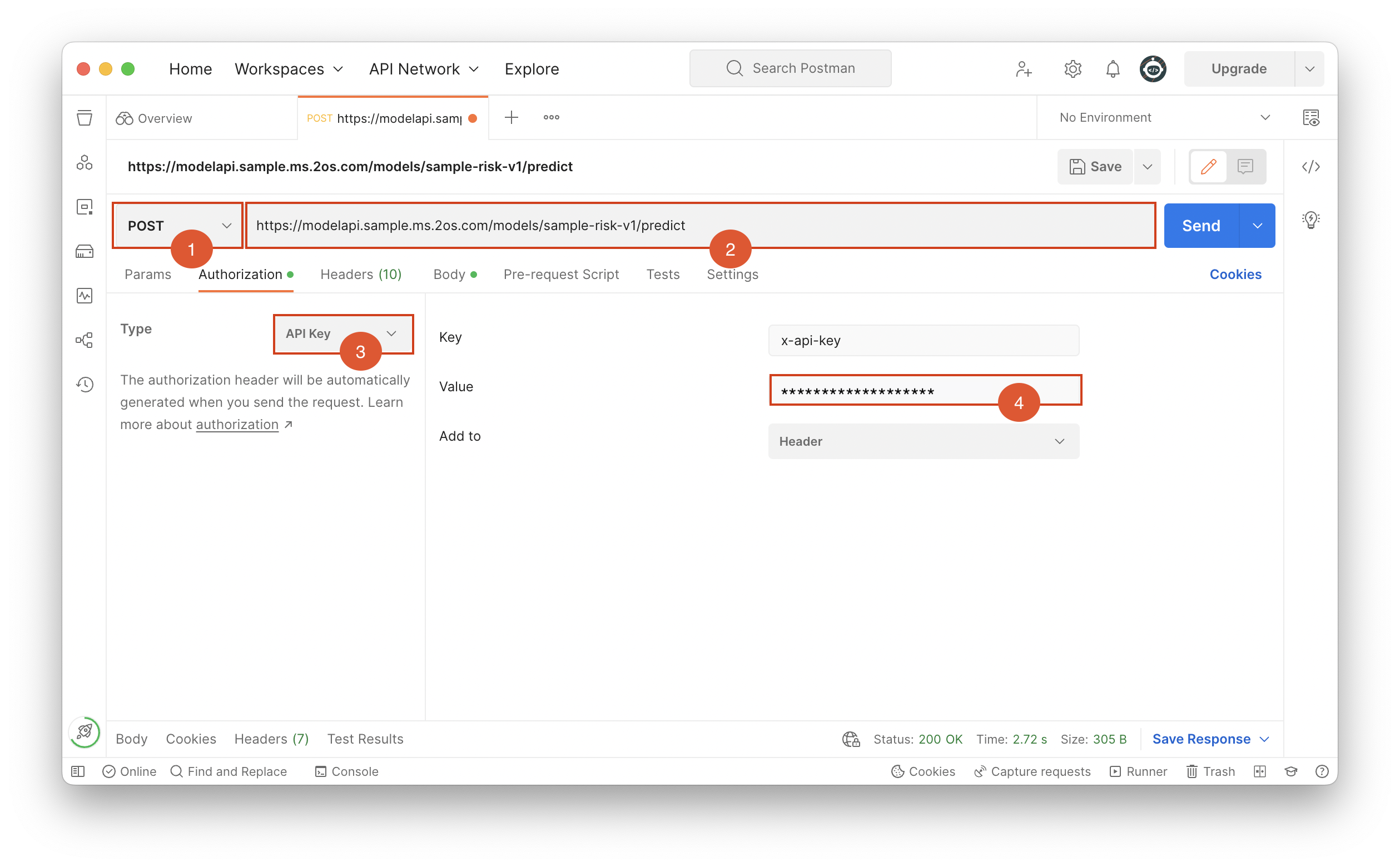
Once the API key is copied, it will be possible to embed it into your systems. For example, a customer applies for a credit product in your systems. Our team at 2OS uses Postman, an API platform to test how a real-time response would be provided:
- Request method: The POST HTTP method is used to specify that your customer is posting data on the given Endpoint.
- API Endpoint: This is the URL representing the API endpoint, which gives access to the API. Typically, this is a combination of the website name, the model name and the type of action, predict. In our demo, the model’s name is ‘sample-risk-v1’.
- Authorization Type: The API key is used to get the output needed by the client.
- Authorization Value: In this field, the API key obtained from the model service website should be pasted.
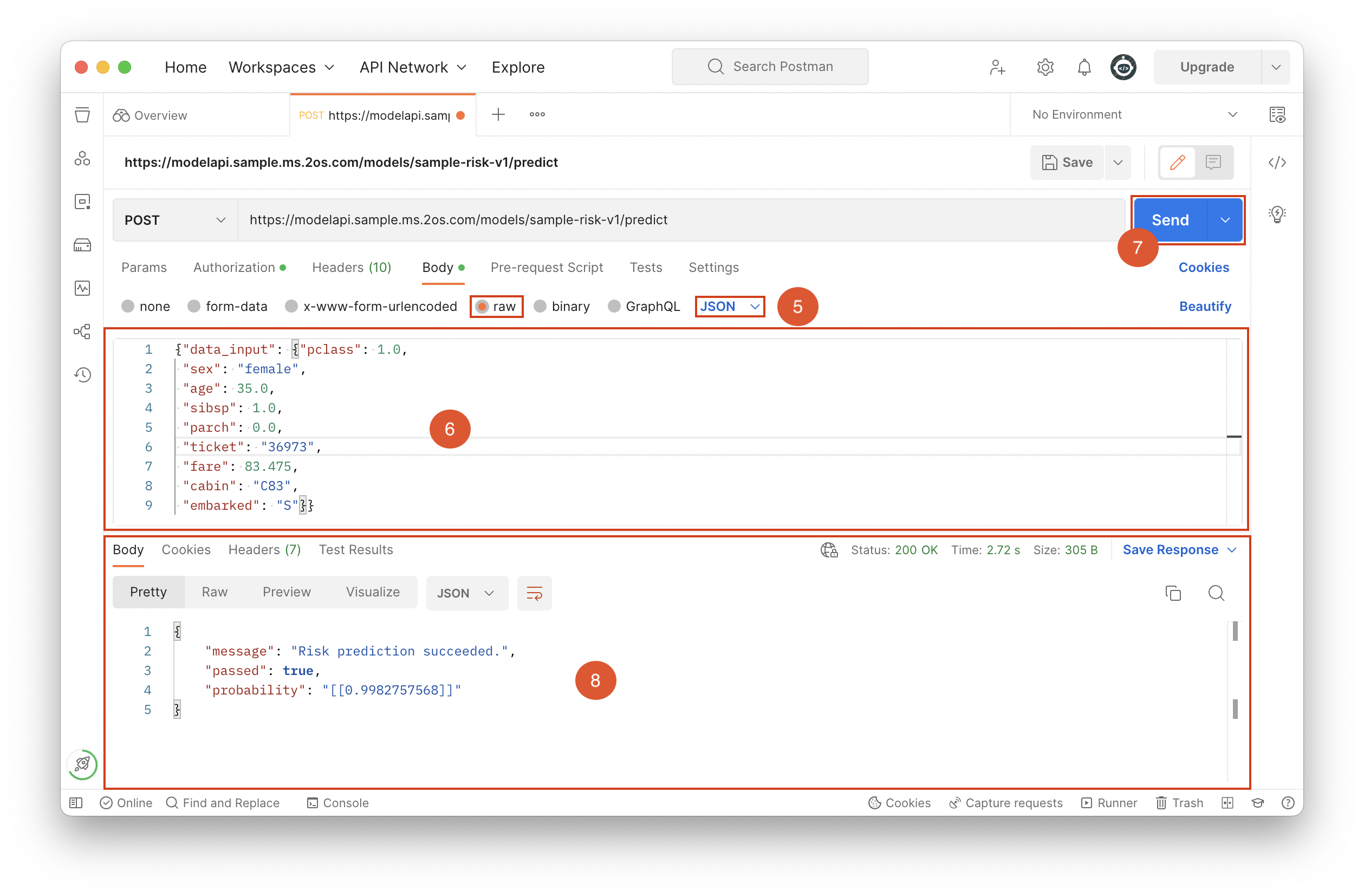
- Body Type: Raw JSON is the preferred body type since most programming languages can read it.
- Body/Input: The body is the information extracted from the customer in your system or application, in JSON format. In our demo, we use features from the generic titanic dataset to score the probability of survival of a given passenger. Hence, the customer inputs relevant information such as which class they travelled in (1st, 2nd, 3rd), sex, gender, etc. Note that the correct number of features, feature names and data types must be provided. More details on this will be provided by the 2OS team.
- Send: The request is sent. In other words, the customer data is posted to the endpoint.
- Output: It corresponds to the response (in JSON) of the request. In our demo, the body is inputted to a fitted model, which outputs the predicted probability of survival for the corresponding passenger. In this case, the prediction succeeded, and this probability is displayed. Depending on the client’s need, the output can be a risk, a response prediction, credit policy, and others.
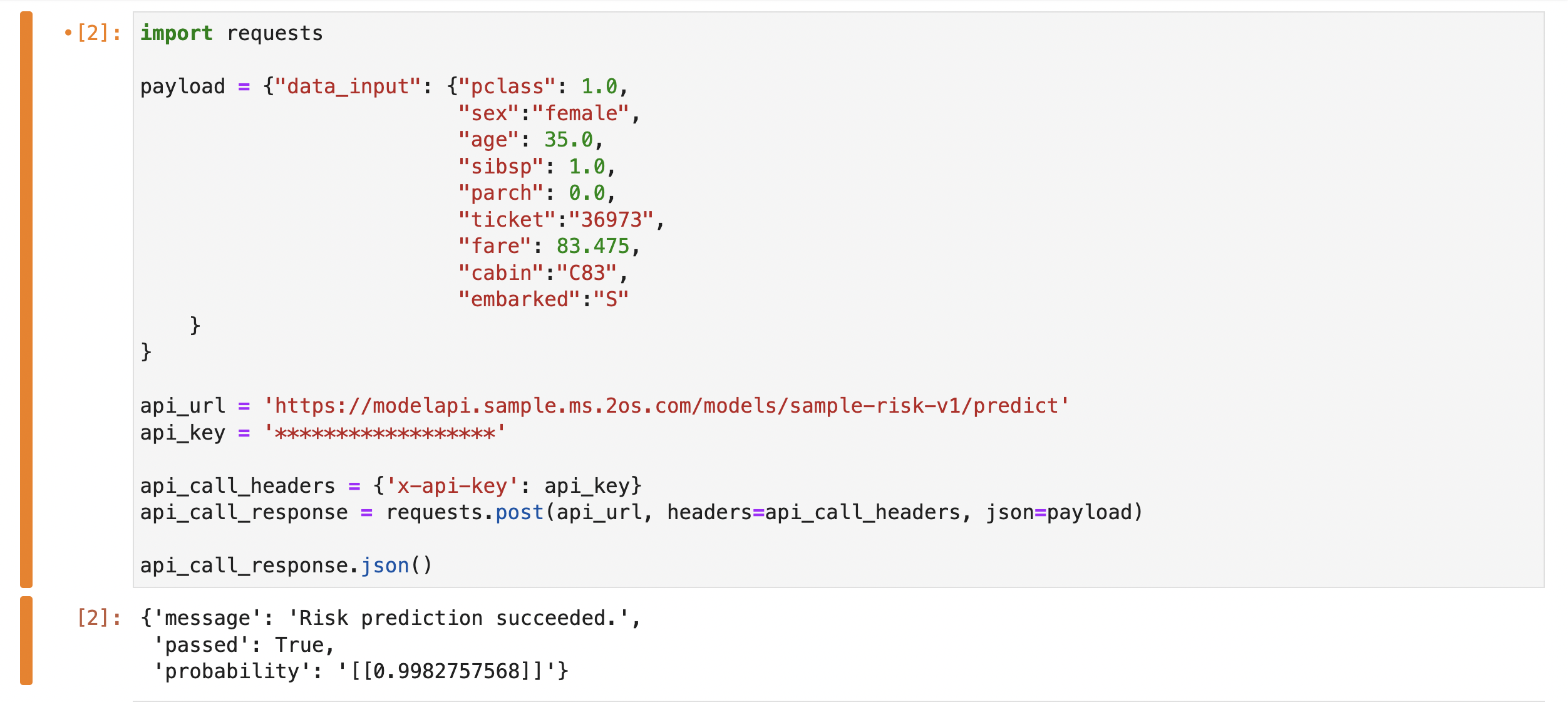
Alternatively, a similar process can be done in Python, with the same elements as before:
FAQ
What is the latency of the API product?
The 2OS team conducted several tests on our demo to understand the latency of Model Service, i.e. the response time from which a request is sent until a response is received. The team varied the number of users and spawn rate (users that start a request per second) from 1 to 25. The lower bound of median latency is 0.7 seconds (1 user + 1 user/sec spawn rate) while the upper bound is 2 seconds (25 users + 25 user/sec spawn rate). That is, Model service is robust to both large number of users sending API requests and doing so at once. Note that the latency lower and upper bound will vary depending on the complexity of the client-specific model and any preprocessing that is performed on the input data.
What are some typical errors?
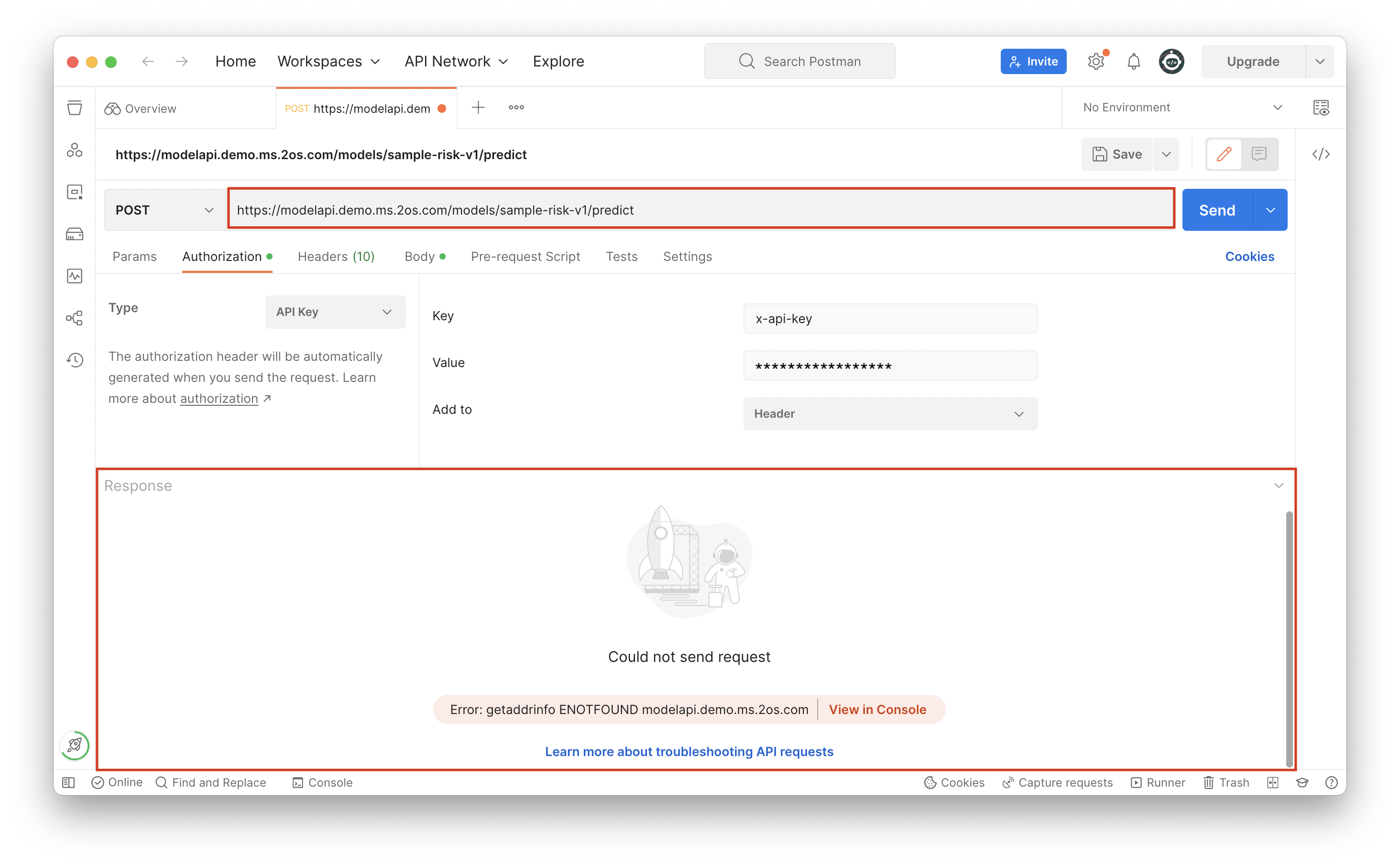
The first common error is wrong domain. As indicated in the first red box, “demo” was used in the domain instead of “sample”. This results in an error where the request could not be sent. To fix this type of error, make sure that the domain matches closely the instructions in Step 3.
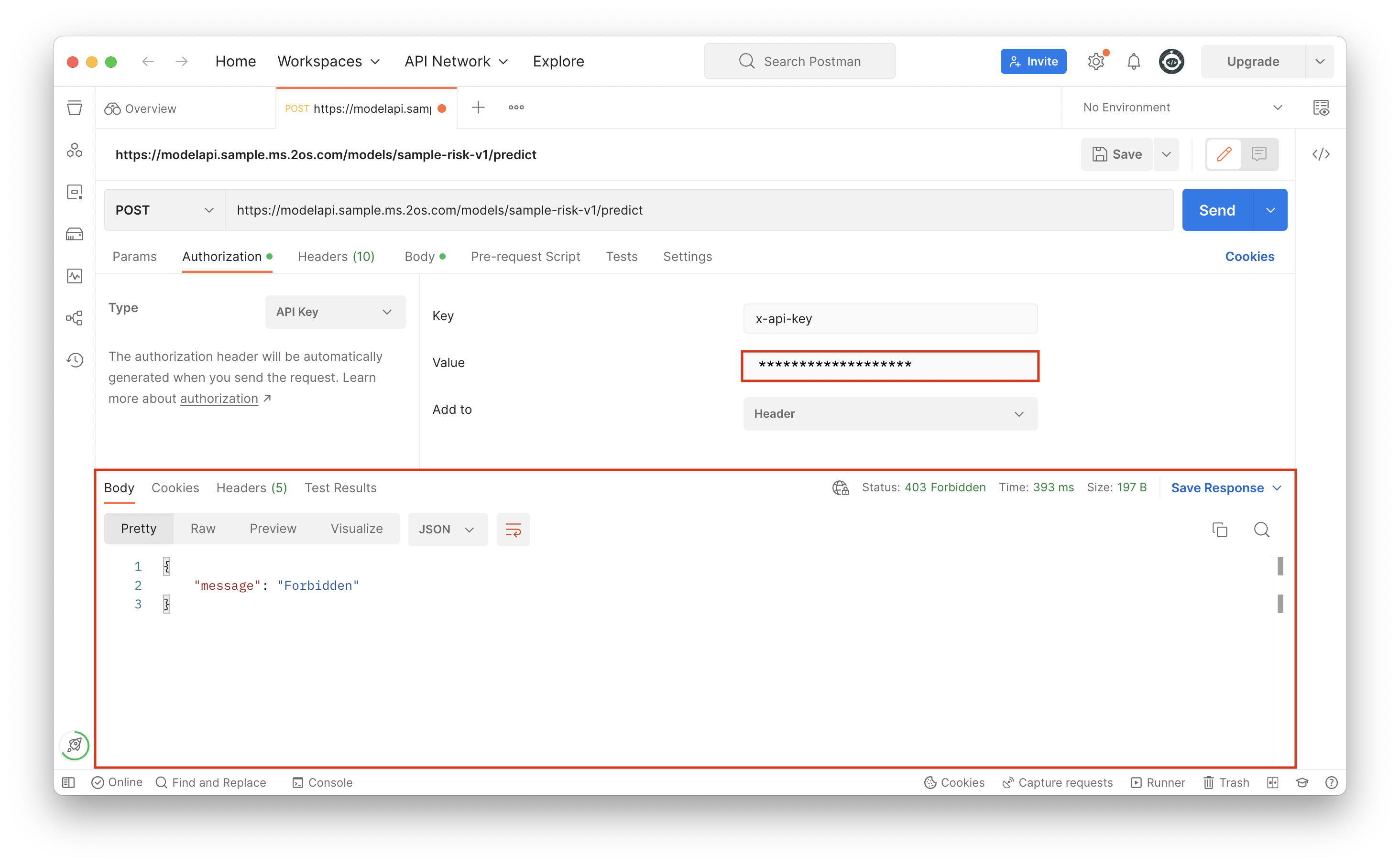
The second common error is wrong API key. In the example below, a character was omitted in the API key, and it resulted in a ‘Forbidden’ error message. To fix this, go back to Step 2 of this guide to copy the correct API key.
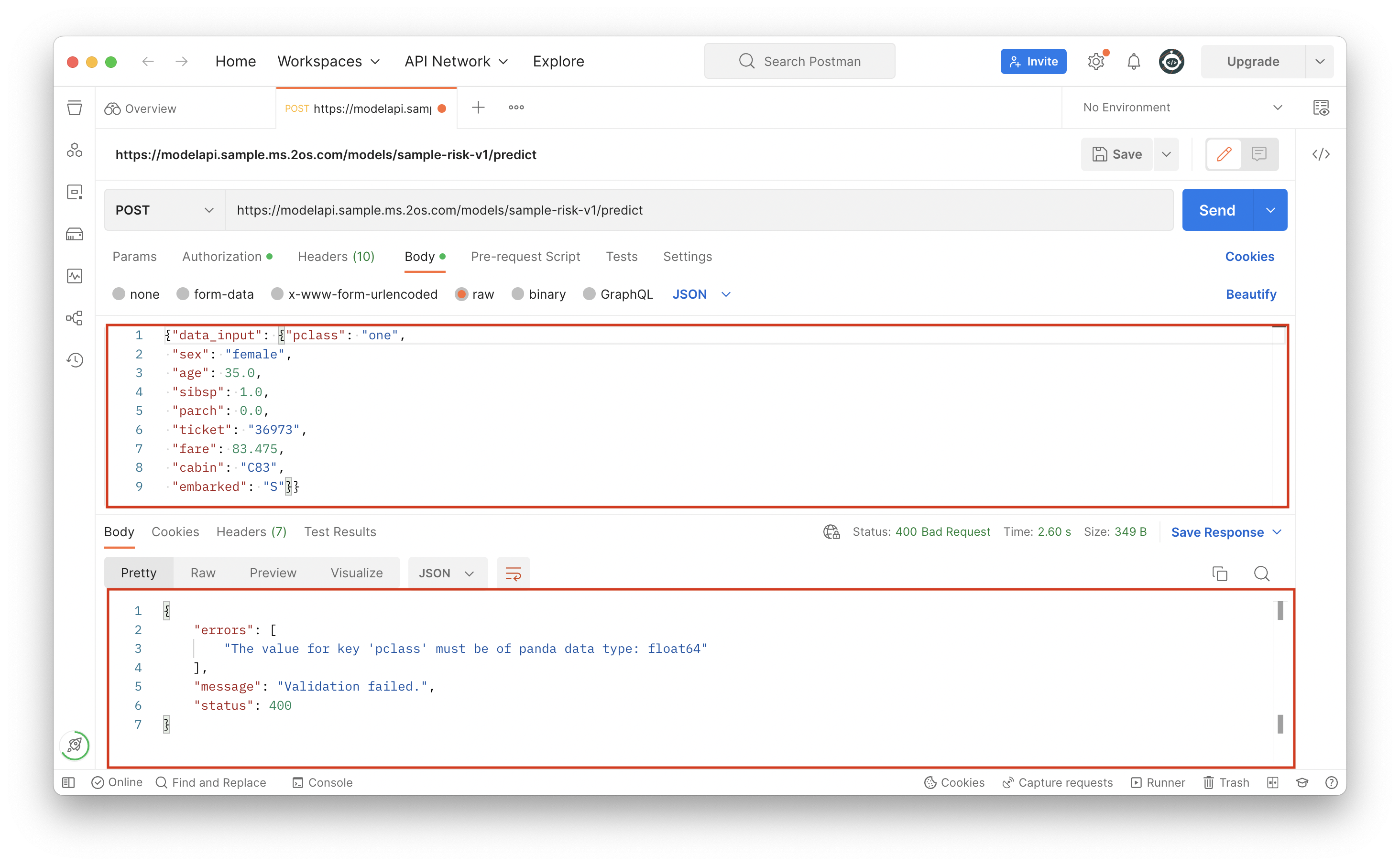
The third common error is data validation failure. One instance of this error is wrong data type. In the image below, the variable “pclass” in our demo which corresponds to the class travelled in (1st, 2nd, 3rd) was specified as a string. An error is displayed indicating that the data validation failed, and that “pclass” should be of type float. In your systems, it is crucial to put guardrails in place to ensure that the user can only input the correct data type for each variable.
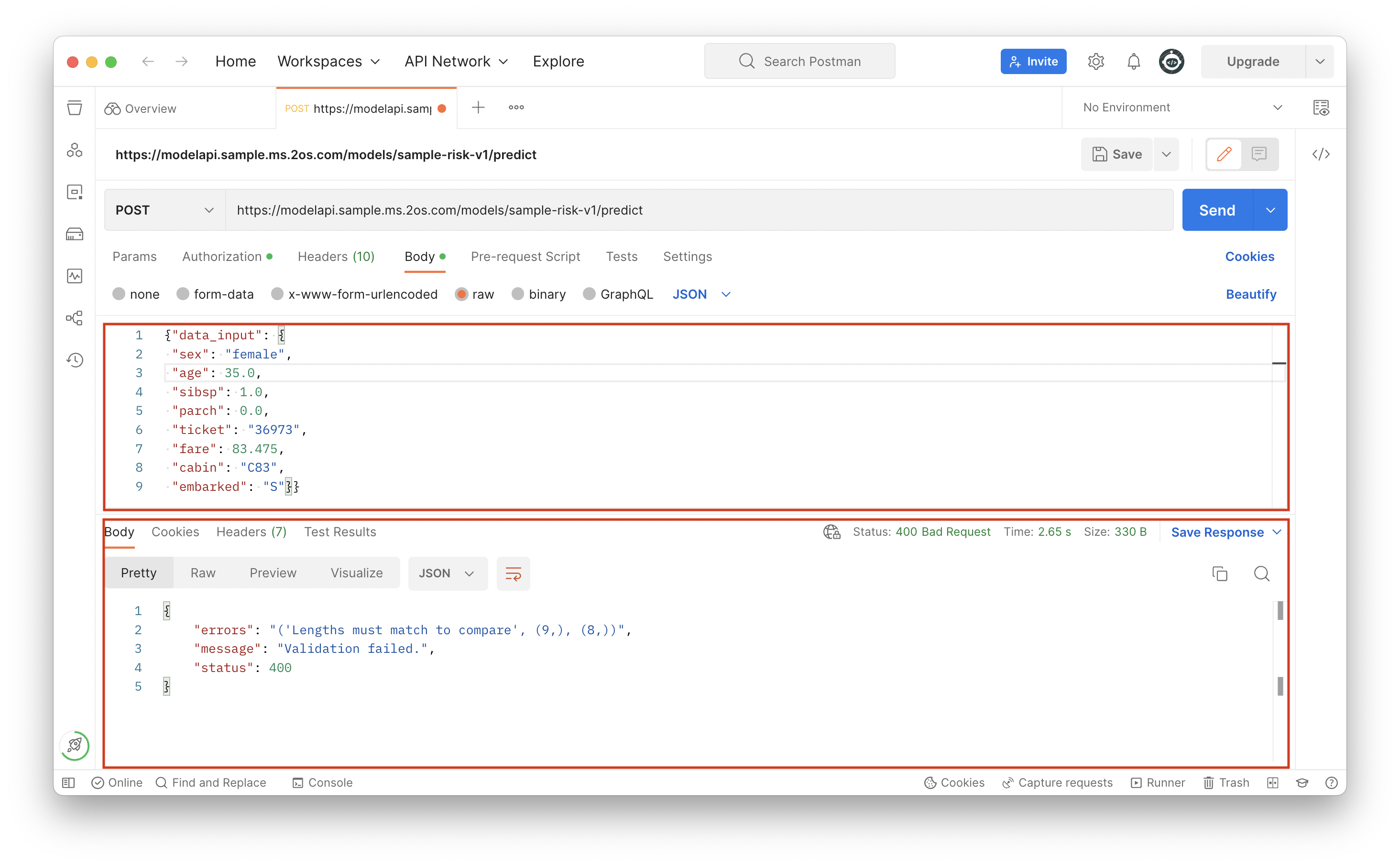
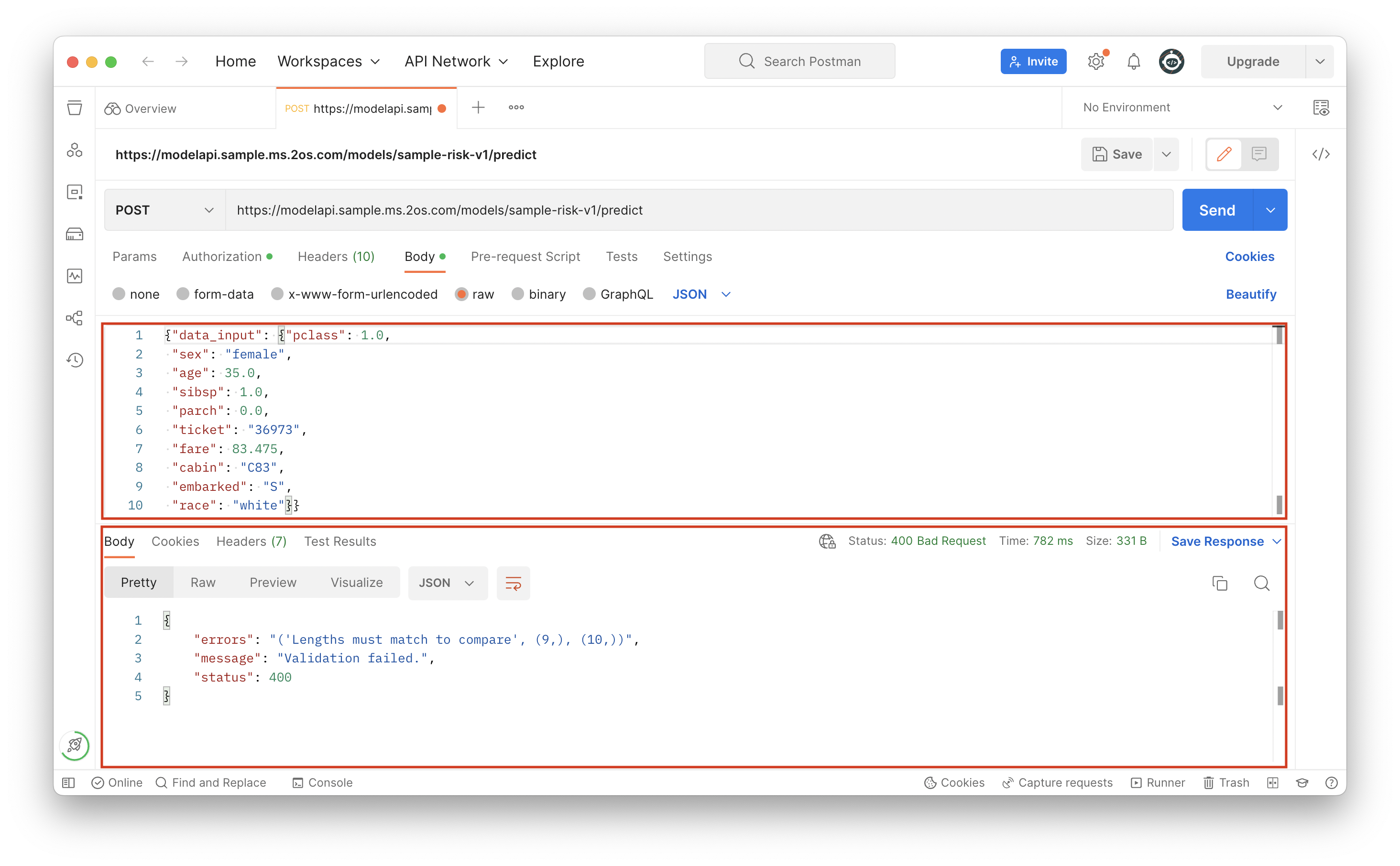
Another instance of data validation failure is providing less/more inputs than necessary. In the two images below, the variable “pclass” was omitted from the input and a 10th variable “race” was included, respectively. An error is displayed indicating that the data validation failed, and that the number of variables of the input data must match the number of features in the fitted model. In your systems, it is crucial to ensure that the user inputs the required data, and that the data inputted for the API request is only that required for the client-specific model.
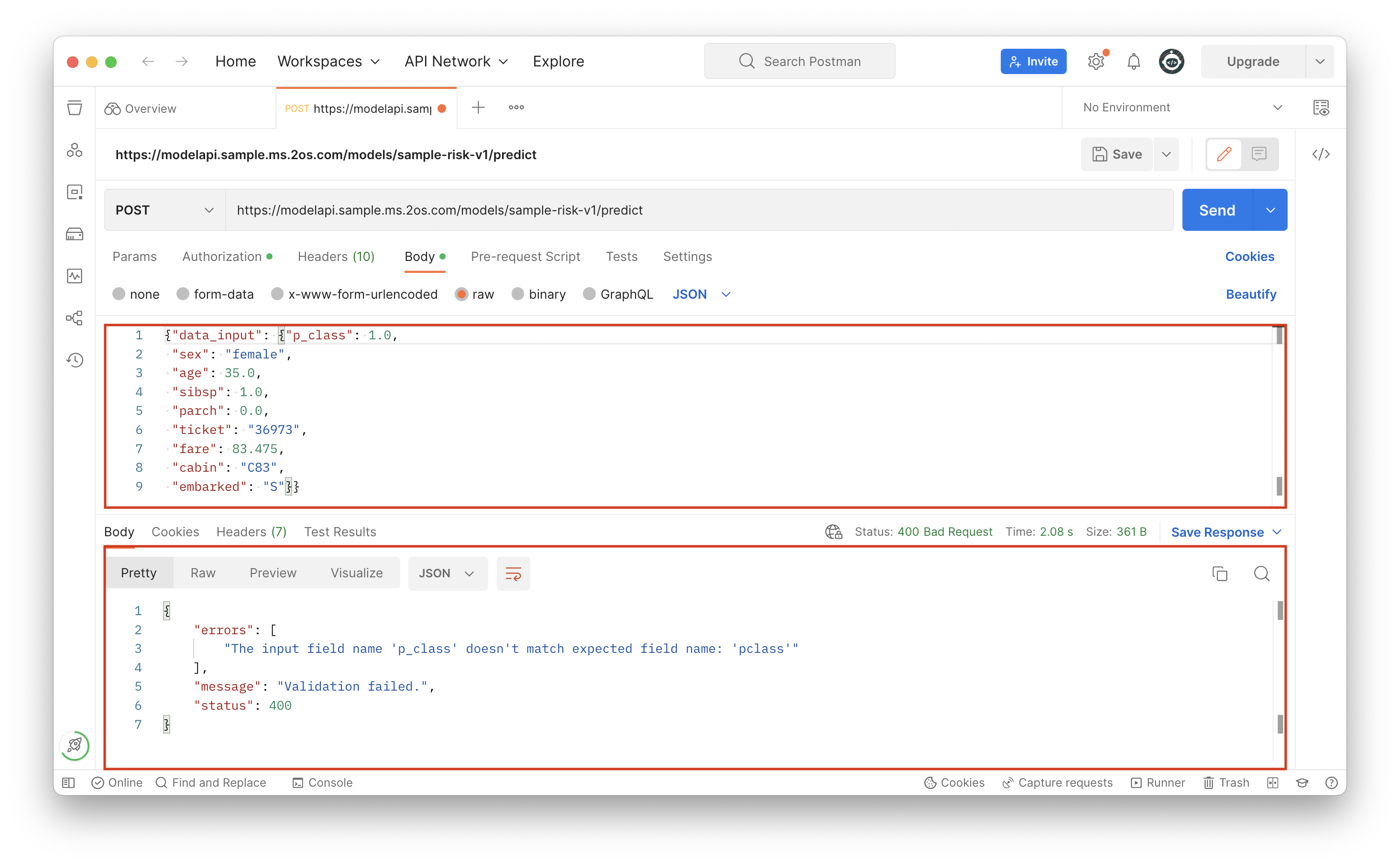
Another typical instance of data validation failure is providing the wrong variable name as input. In the image below, the variable “p_class” replaced the correct variable name “pclass”. The error displayed is that model service was expecting the correct field name. This error is easily fixed by ensuring the right variable names are provided to the API request.